
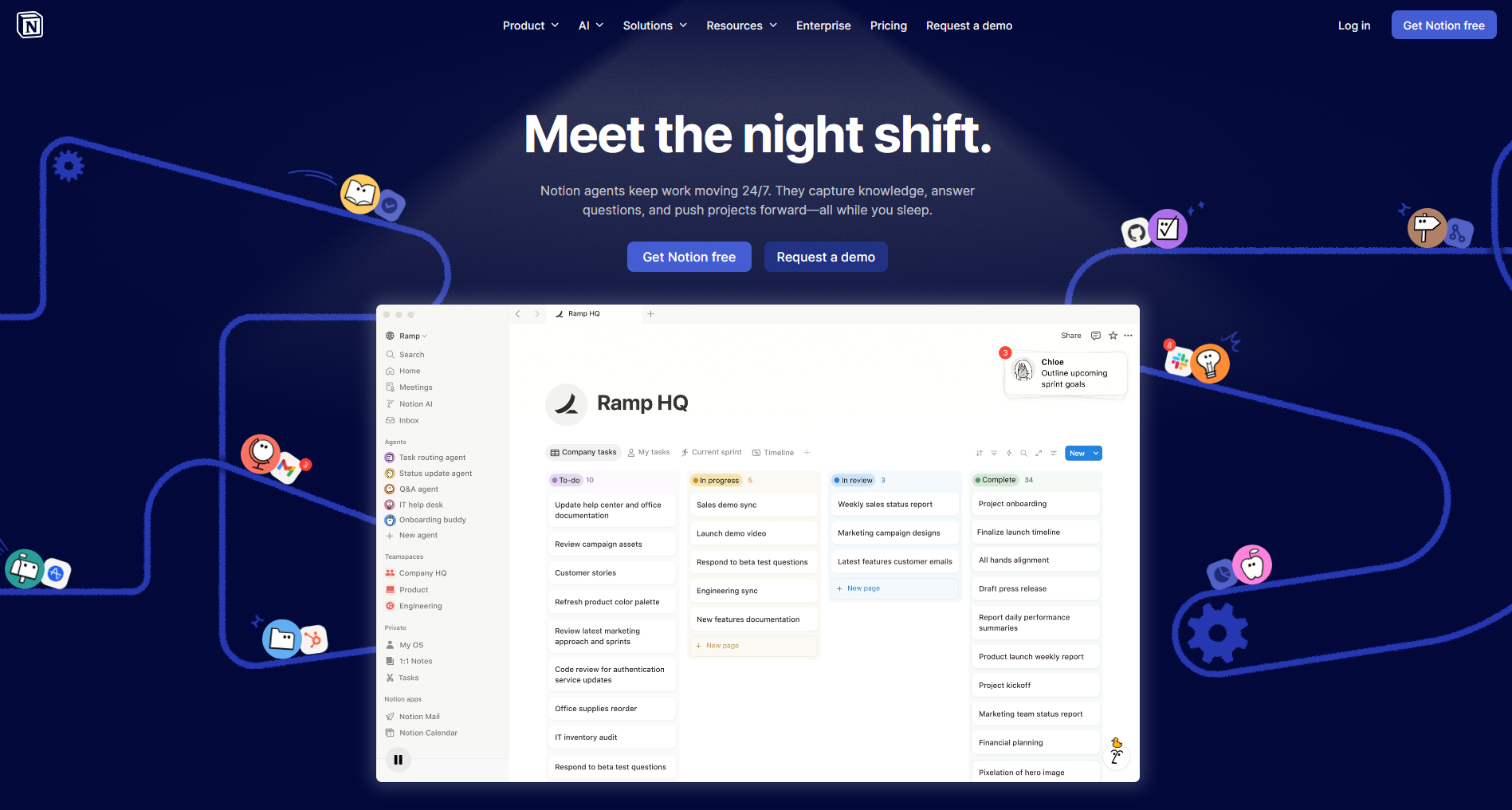
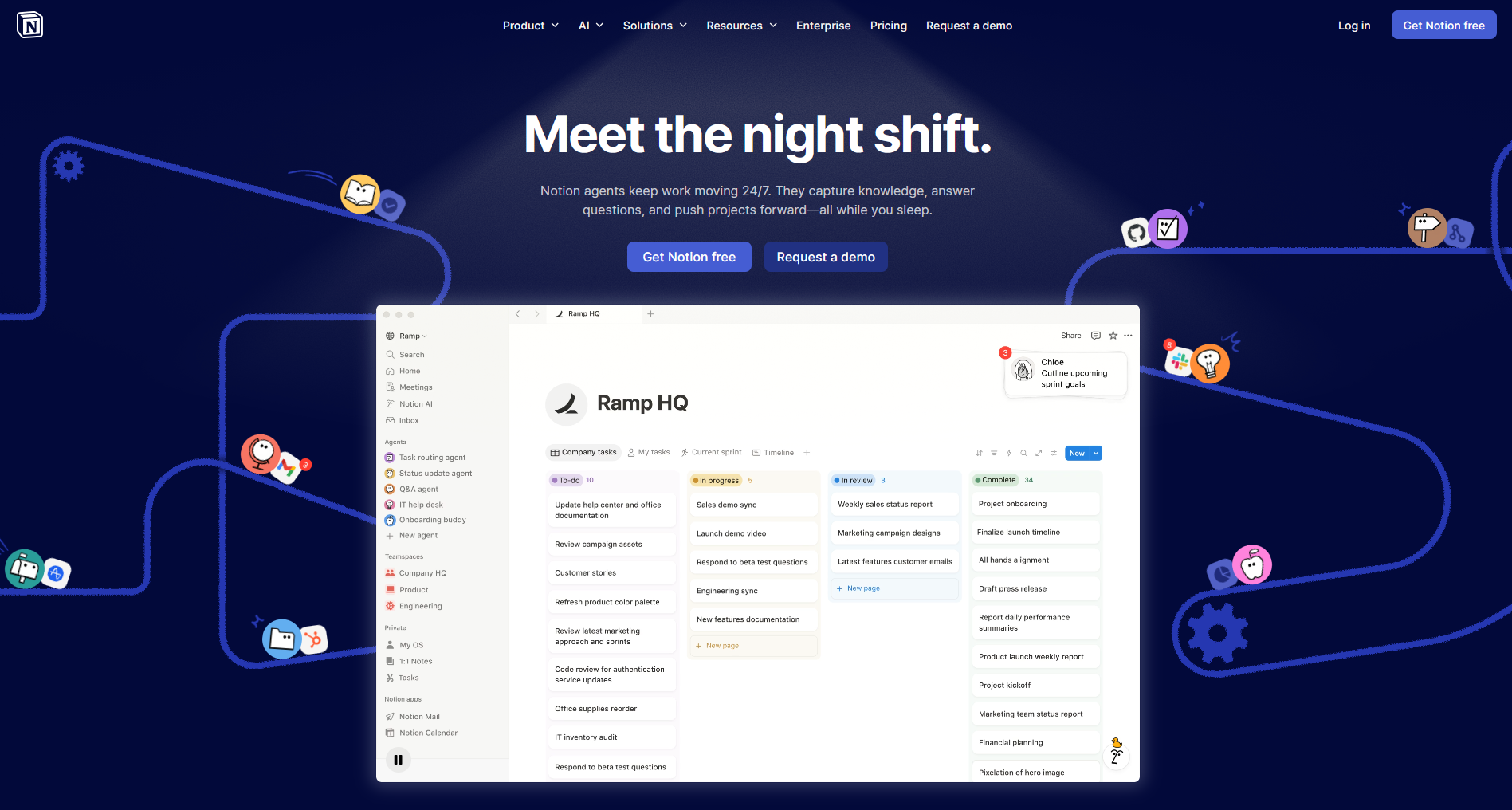
Notion is a unique workspace that combines notes, databases, Kanban boards, calendars, and wikis. In recent years, it has become a true hit among freelancers, teams, and anyone looking to organize their information. In this guide, we'll cover everything from scratch: how to download Notion, master the interface, create databases, use templates and calendars, and share secrets for working efficiently.
What is Notion and why do you need it?
Notion is a builder for organizing any type of information. Unlike regular notebooks, here you can create linked databases, pages, boards, and calendars. Some people use it for personal notes, others for project management, and some as a company wiki (knowledge base). Notion's main feature is its flexibility: you decide how your workspace will look.
Thanks to its support for online collaborative documents, Notion is perfect for teamwork. You can invite colleagues, edit pages simultaneously, leave comments, and always see the most up-to-date version.
How to install Notion on all devices
To get started, you'll need the app or web version. Here are the main ways:
Web version: go to notion.so and log into your account. This is the quickest way and doesn't require installation.
Desktop application: available for Windows and macOS. Download Notion from the official website. The app works faster and allows you to work offline.
Desktop app: available for Windows and macOS. You can download Notion from the official website. The app works faster and allows you to work offline. for iOS and Android — in the App Store and Google Play.
Tip: if you're looking to download the Notion app specifically for your platform, check out our catalog card — it has all the latest links to official sources.
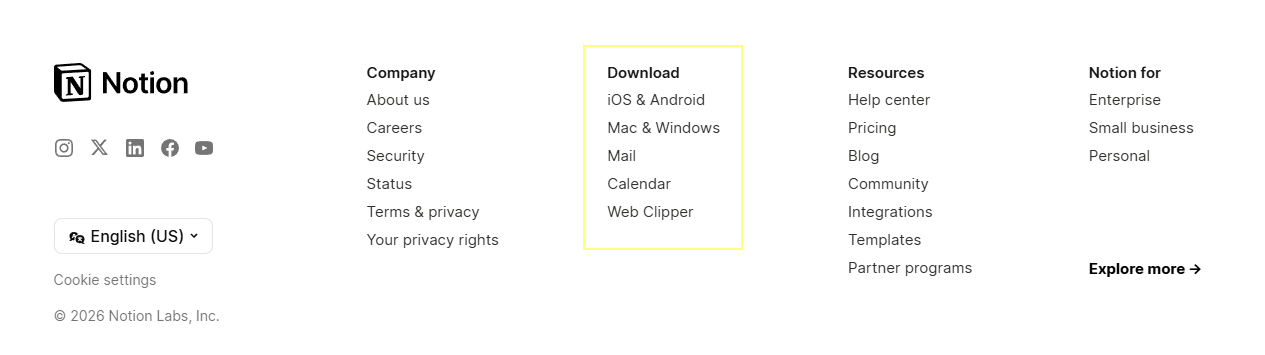
To get the links on the official website, you need to scroll all the way down and you'll see all the download links.
Notion Interface: First Steps
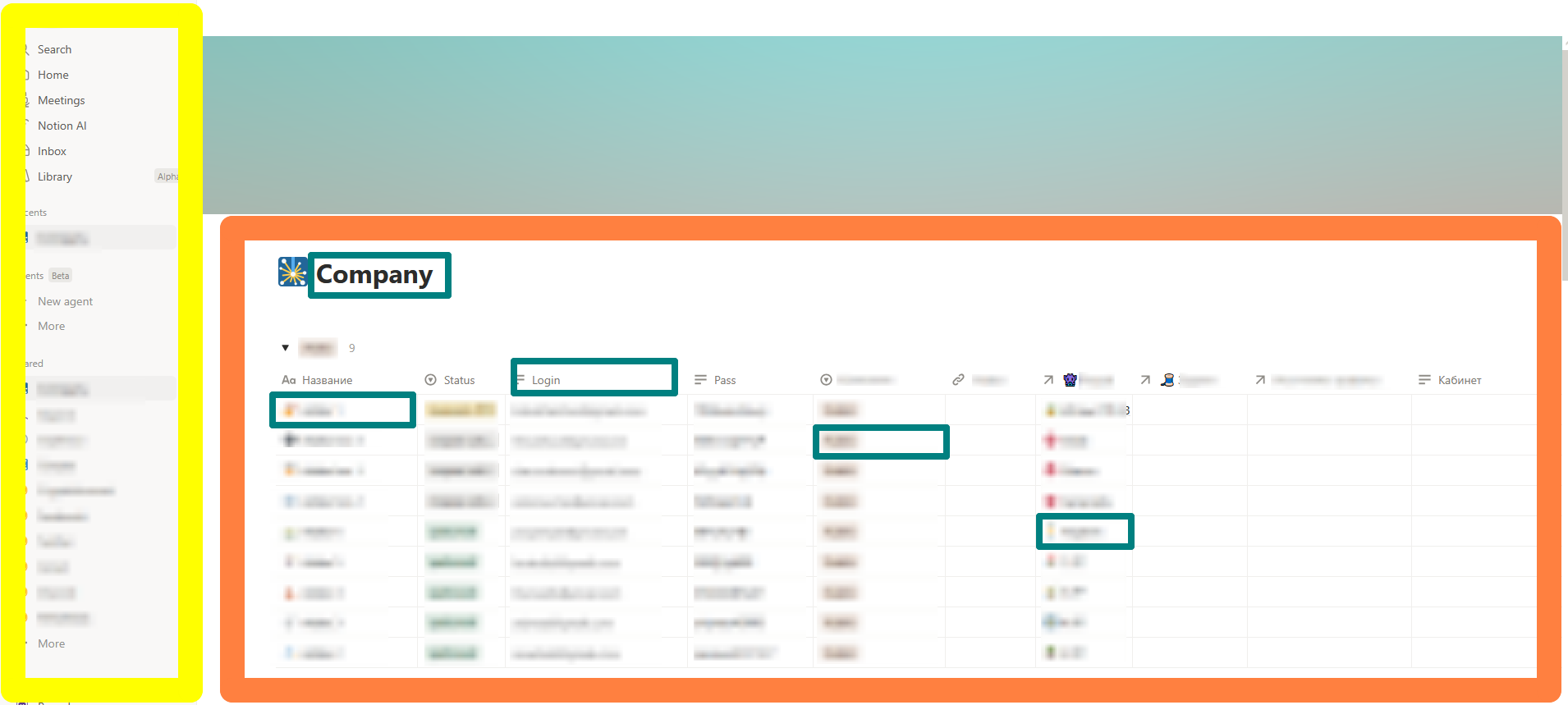
After installation and login, you'll be taken to the workspace. Here are the main elements:
The left sidebar — here you'll find all your pages, databases, and favorites. You can create nested structures.
Workspace — the central area where you edit the current page.
Blocks — the foundation of Notion. Any element (text, heading, image, table) is a block. To add a new block, click
+or type/.
Create your first page: click "+ Add a page", give it a title, and start filling it with blocks. Try adding text, a checklist, an image — the interface is intuitive.
Databases in Notion — The Main Feature
Databases are what make Notion truly powerful. They allow you to structure information and view it in different formats: table, board (Kanban), list, calendar, gallery.
How to create a database:
After logging in, click on creating a new page on the main page.
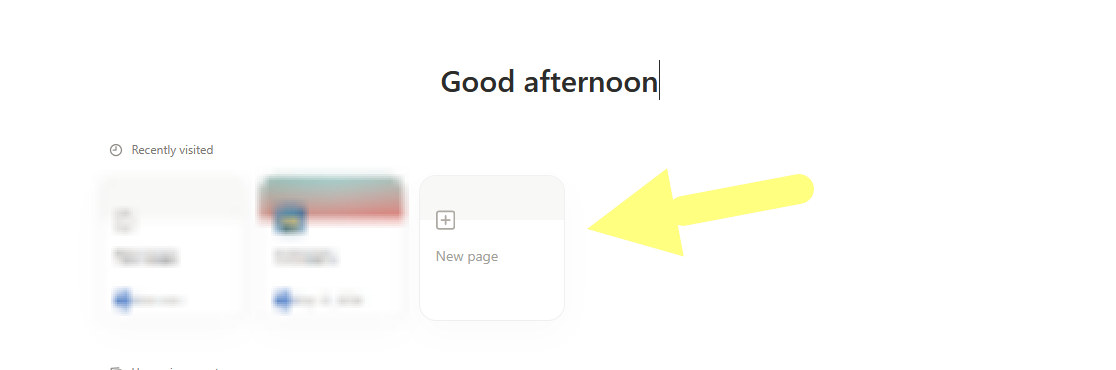
Creating a Database in Notion Once you're on a blank page, there will be separate buttons at the very bottom.
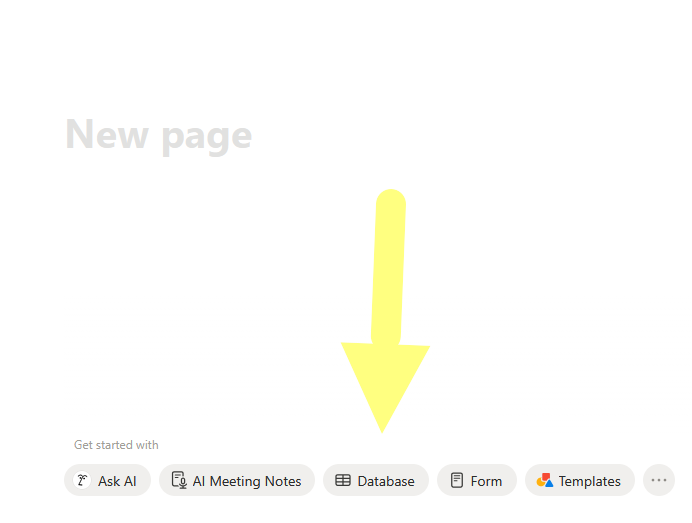
Selecting a Database in Notion Clicking the database button will open a window where you can choose pre-made databases. For example, a project table, documentation, and others...
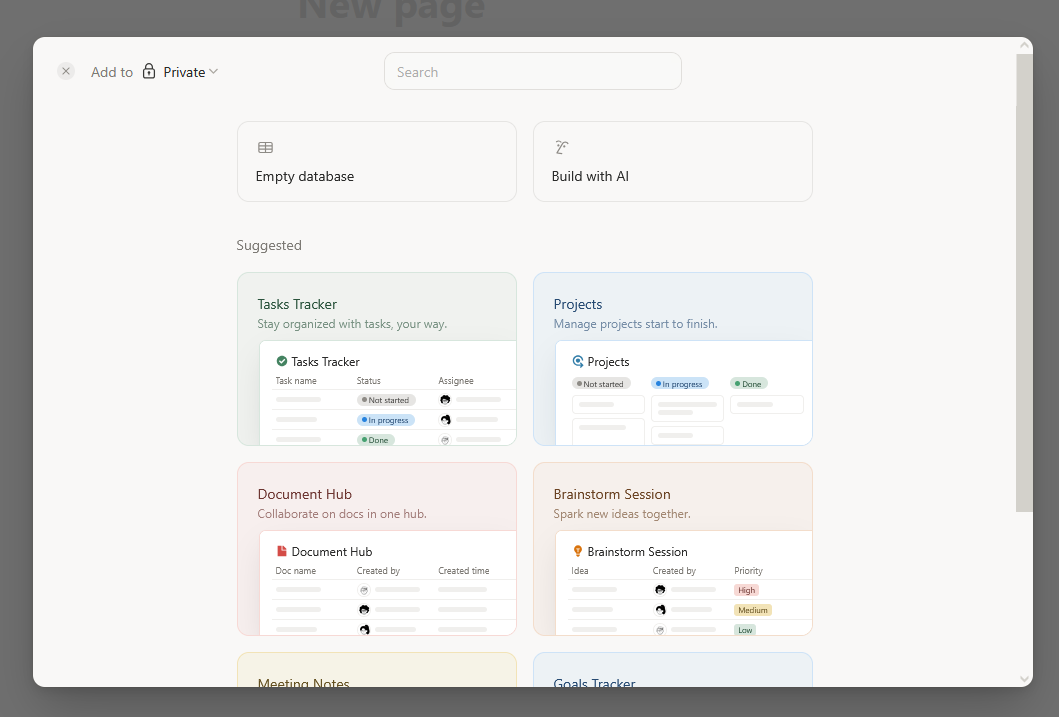
List of Notion Database Options
Examples of using Notion databases:
Task tracker: columns for "Task", "Status", "Assignee", "Deadline". The "Board" view (Kanban) lets you drag and drop tasks across columns.
Book database: columns for "Title", "Author", "Genre", "Reading Status". In the "Gallery" view, you can display book covers.
Client database: contacts, deals, communication history — all in one place.
Thanks to its flexibility, Notion for work is suitable for both freelancers and large teams.
Notion Templates: How to Use and Where to Find Them
You don't have to create everything from scratch. Notion templates are ready-made pages and databases that you can copy and adapt to your needs.
Where to find templates:
Notion's built-in gallery: click "Templates" in the sidebar — here you'll find dozens of templates for every need: for study, work, personal planning, habit tracking.
Third-party resources: many bloggers and companies share free Notion templates in various languages. For example, you can find ready-made monthly planners, finance trackers, or knowledge bases.
Our catalog: in Notion card we have collected links to the best free templates notion, that you can download and use right away.
Our catalog: in the Notion card, we've collected links to the best free Notion templates that you can download and use immediately.
Popular template categories:
Personal planning (journals, habit trackers, goal lists)
Project management (roadmaps, Kanban boards)
Knowledge base (team wiki)
Notion for students (schedules, notes, exam planning)
Notion for note-taking (note-taking systems like Zettelkasten or PARA)
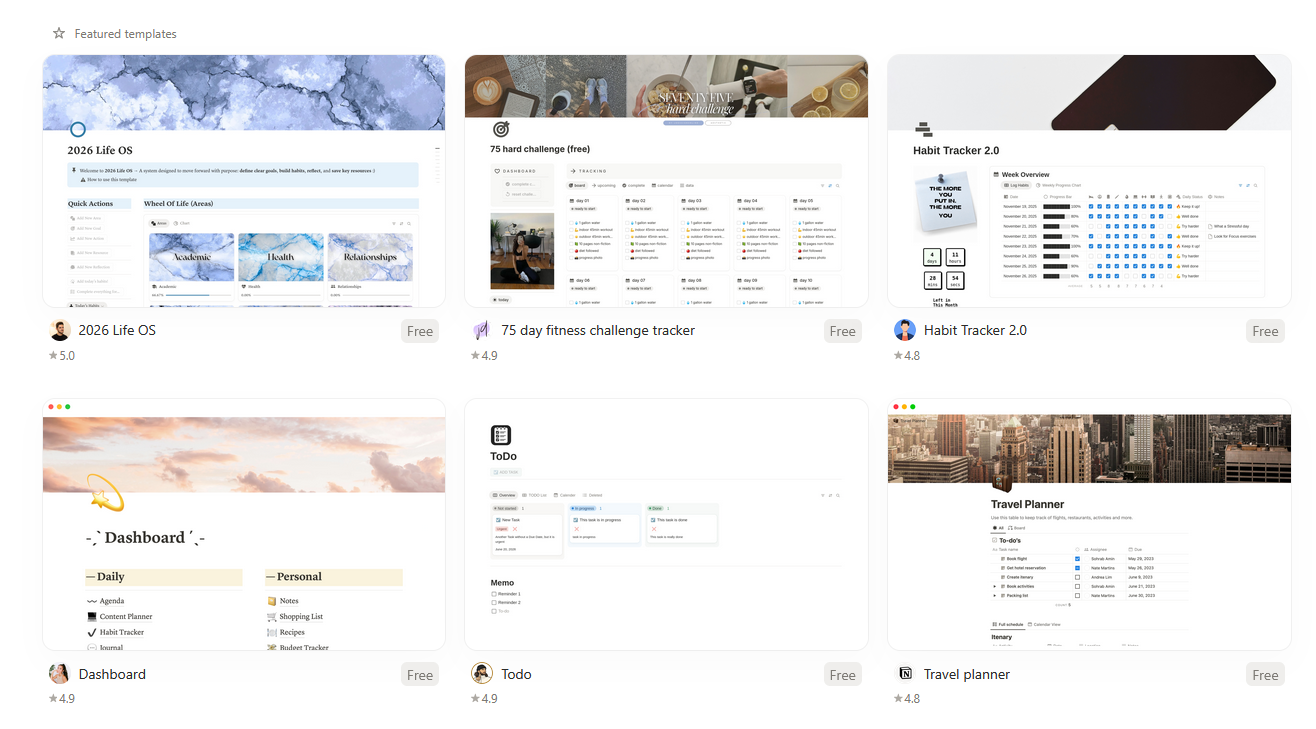
Notion Template Examples
Notion calendar: plan your time and events
Notion calendar — one of the most popular database views. With it you can easily plan tasks, content, and meetings.
How to create a calendar:
Create a database with a "Date" type field.
Add a "Calendar" view.
Now all items with a date set will appear in the calendar. You can drag them and change dates directly with the mouse.
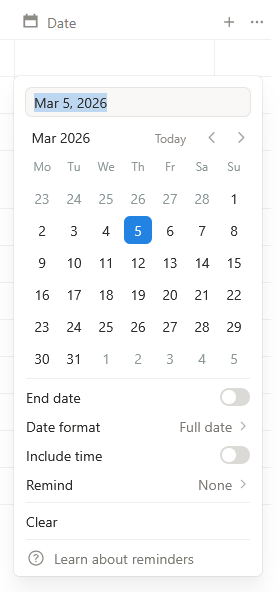
Calendar in a Notion cell
If you need to sync tasks with Google Calendar, use Notion integrations (via built-in connections or services like Zapier). You can also embed Google Calendar on a page with the /embed — this lets you see both calendars side by side.
Formulas and advanced features
For those who want to automate calculations, Notion has formulas. They work like in Excel: you can calculate percentages, sum values, and display statuses. For example, you can create a "Project progress" field that is automatically calculated based on completed tasks.
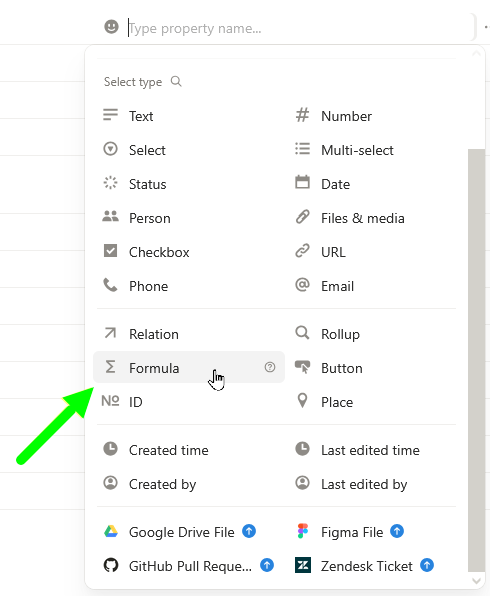
Although Notion formulas require some learning, but the basics are easy to master. Here are a couple of examples:
prop("Done") / prop("Total") * 100— completion percentage.if(prop("Deadline") < now(), "Overdue", "On time")— status by deadline.
Notion integrations with other services
Notion supports many integrations, that extend its capabilities. You can connect:
Google Drive, Dropbox — for inserting files.
Slack — to get notifications about changes in Notion.
GitHub, Jira — for developers.
Figma — for designers.
Zapier, Make — for building complex automations.
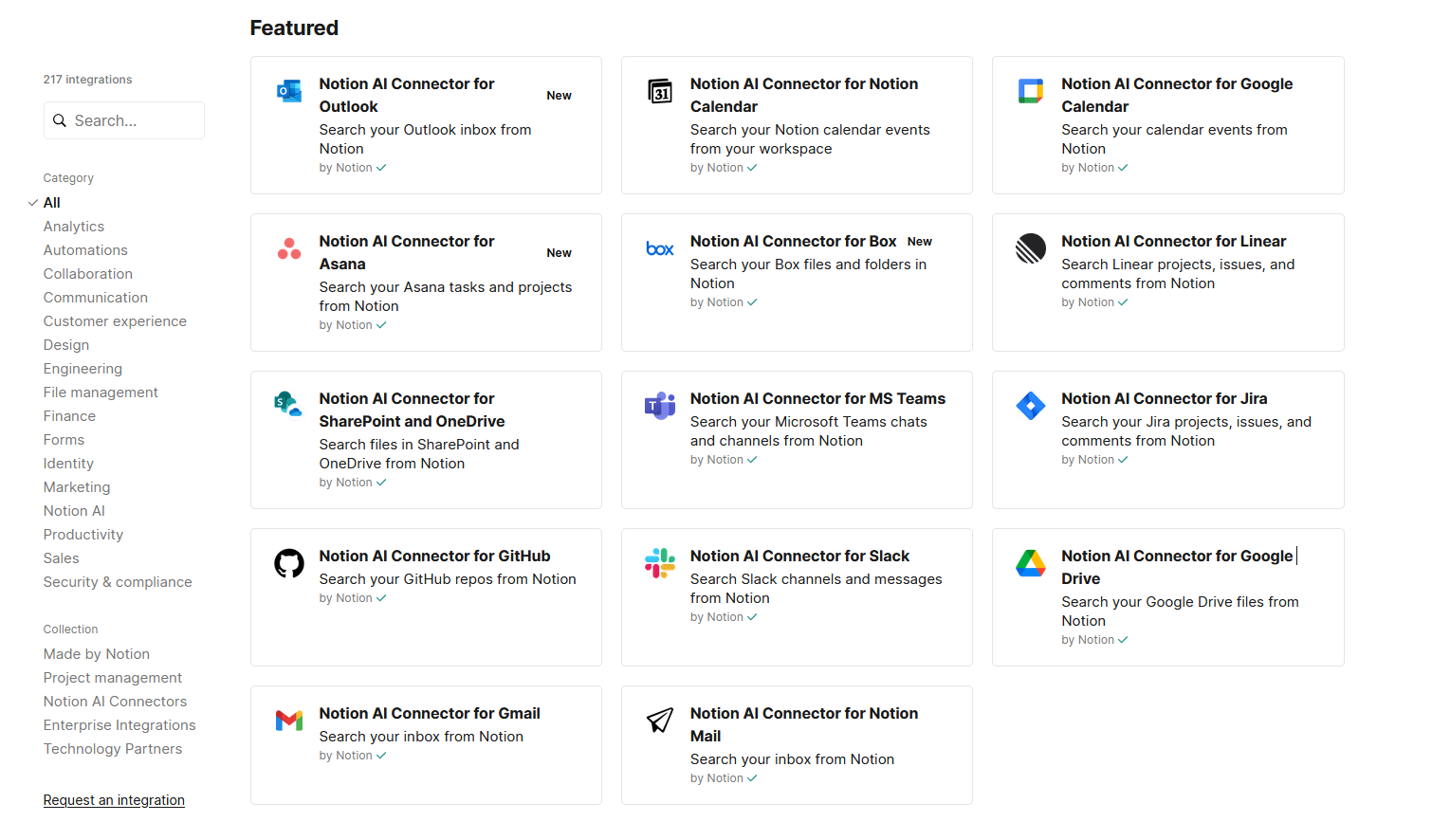
To connect an integration, go to workspace settings (Settings & Members → Integrations) and grant access to the services you need. Notion currently integrates with 217 services.
Tips for working effectively in Notion
Keyboard shortcuts speed up your work. For example,
Cmd/Ctrl + N— new page,Cmd/Ctrl + Shift + L— dark theme.Linked databases let you reuse information. For example, create a "Tasks" database and link it to a "Projects" database — then each task will be tied to a project.
Buttons (Button) automate repetitive actions. You can create a button that adds a task template for today.
Publishing pages — if you want to share a page with anyone (even without a Notion account), click «Share» → «Publish». A public link will be created.
Data export (Notion export) — you can export pages as Markdown, HTML, or PDF. Useful for backups.
Frequently asked questions about Notion
Is Notion free?
Yes, Notion has a generous free plan. It includes: unlimited pages, blocks, 5 MB for files (paid plans have higher limits). For personal use and small teams this is usually enough. For a detailed comparison of Notion plans see our catalog card.
Is Russian supported?
Notion interface is translated into many languages, including Russian. To change the language, go to Settings → Language & region.
Can you work offline?
Yes, desktop and mobile apps support offline mode. Changes sync when connection is available.
How to share a page with others?
Click «Share» in the top right and choose the access level (view only, comment, or edit). You can invite by email or create a public link.
How to restore a deleted page?
In the left menu there is «Trash». Deleted pages are stored there and can be restored within 30 days (longer on paid plans).
Conclusion
Notion is a versatile tool that replaces dozens of apps. Thanks to its flexibility, it works for both personal planning and team work. In this guide we covered the main features: creating pages, working with databases, using templates, calendars and integrations. We hope you see, that anyone can learn Notion.
If you want to always have up-to-date information about Notion, including download links, templates and comparison of plans, visit the Notion card in our catalog. There you will find everything you need for productive work.
This article was prepared by the remote work services catalog team. Share it with colleagues and friends who are also interested in Notion!